
Turbo Cleaner
JTR LabsTools
3.613.00 Reviews
- Version
- 1.0.1
- Installs
- 100.00K
- Age Rating
- Everyone
Screenshots
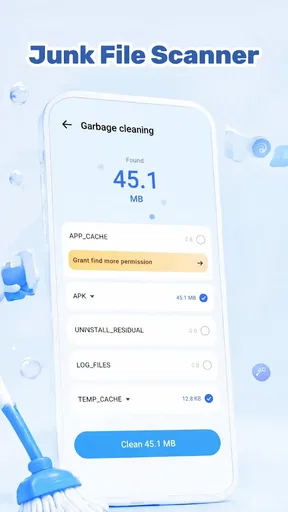
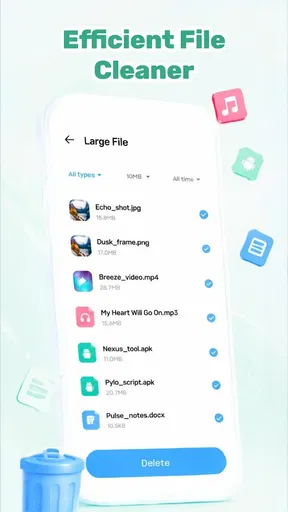

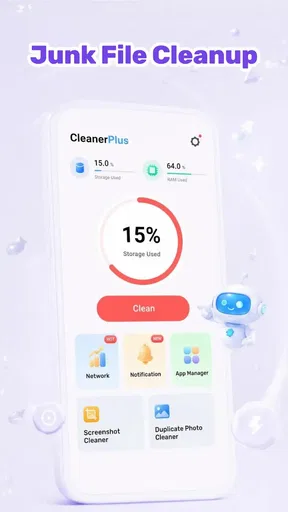
Our Review of Turbo Cleaner
 Analysis by Appyee
Cleaning a phone sounds simple until the task involves dozens of folders, crowded app lists, and warnings that are difficult to interpret. I spent time looking at Turbo Cleaner as a practical tools app from JTR Labs, focusing not only on what it promises to do, but also on how comfortably different people can use it. Its core idea is straightforward: help sweep away junk files and bring more order to installed apps. That makes it appealing when a phone feels cluttered, although the real value depends on how clearly you can review the suggested cleanup actions before accepting them.
The app is free, rated for Everyone, and currently sits at version 1.0.1. It supports Android 7.0 and later, so it can reach people using older devices as well as newer phones. Its average rating is 3.6 from over 300 ratings, while its install count has passed 100K. Those figures suggest that Turbo Cleaner has found a meaningful audience, but they also tell me to approach it as a useful, still-developing utility rather than an unquestionable replacement for every built-in storage tool.
How clearly the app guides you through cleanup
I find that a cleaner is most helpful when it makes the next step understandable, not merely when it points to material it considers unnecessary. In this section, I look at how a focused cleanup flow can help users slow down, check what they are about to change, and stay in control—especially when the phone holds files they may want to keep.
Readability and navigation
The most important accessibility question for a cleaner is not whether it can find files. It is whether the person using it can understand what will happen next. A storage tool can become stressful if it presents a large number of categories without explaining which items are safe to remove. Turbo Cleaner’s purpose is easy to grasp, and that is a good starting point: the app is centered on cleaning unwanted files and organizing apps rather than trying to become a complete phone-management suite.
For someone who prefers a direct workflow, that narrow focus should feel less demanding than moving through several unrelated maintenance features. I would begin by checking the scan result slowly instead of treating the first suggested action as an automatic instruction. This is especially important for people who use their phone for work, study, or communication and may keep downloaded documents, images, or recordings for a reason. A cleaner should support a decision, not replace it.
Text size and contrast can vary greatly between phones because Android display settings, themes, and manufacturer interfaces affect how an app appears. I would therefore test Turbo Cleaner with the device’s larger text setting before relying on it regularly. If labels remain clear and controls do not become cramped, the app may suit users who need a more comfortable reading scale. If the layout becomes crowded, the safer approach is to use it only when another person can help review the results.
The app’s organizing purpose may also help people who find long app lists tiring. Instead of manually opening the system settings and searching through every installed item, a focused cleaner can provide a more purposeful starting point. That does not mean it eliminates the need for judgment. It means the first step can be less mentally scattered, which matters for users who lose track easily when several settings pages look alike.
One useful habit is to treat the first scan as an inventory rather than a command. Look at the categories, note what the app considers unnecessary, and then close anything that needs a second opinion. On a shared family phone, this creates a simple routine: one person can perform the scan, while the phone’s owner confirms personal files before anything is removed. That workflow is more inclusive than assuming every user can confidently interpret a technical cleanup screen alone.
Motor and sensory considerations
Cleanup tasks often involve repeated tapping, scrolling, and selecting small checkboxes. That can be uncomfortable for people with limited dexterity, tremors, joint pain, or fatigue. Turbo Cleaner is most useful in this context when its main actions are easy to reach and the user does not have to make many precise selections. I would avoid rushing through the process, because an accidental tap on a destructive action is more serious than a missed button in an ordinary utility.
For users who rely on touch alternatives, Android’s accessibility tools may provide assistance with switch access, voice control, magnification, or screen reading. The important point is that compatibility should be checked on the individual phone rather than assumed. A cleaner that looks simple visually may still be awkward if its labels are not announced in a useful order or if important controls are represented mainly by icons. I would test the complete path from opening a scan to reviewing and confirming a cleanup.
Sensory comfort matters too. A utility app is usually opened when the user already feels that the phone is slow, crowded, or difficult to manage. Dense lists, sudden changes, or unclear warnings can add pressure. I prefer a calm approach: scan when there is enough time, review one category at a time, and avoid cleaning while travelling, multitasking, or dealing with an urgent message. Turbo Cleaner is better suited to deliberate maintenance than hurried, distracted use.
People with hearing loss should not need audio feedback to understand a storage action. The essential information ought to be visible in text, and users who cannot comfortably read small text should be able to enlarge the phone display without losing access to the controls. Because visual presentation can differ across Android devices, I would consider this a personal trial point rather than a guaranteed strength.
A practical tip is to use the app after closing other tasks and placing the phone on a stable surface. That reduces the need for repeated gestures and makes it easier to inspect the screen. For someone with limited hand movement, a trusted helper can handle the physical taps while the owner makes the decisions. This preserves control over personal content instead of turning cleanup into an unexplained technical service.
Situational access in everyday use
Turbo Cleaner makes the most sense in situations where clutter has become a specific problem. Imagine a family member preparing for a trip with an older Android phone. The device has accumulated temporary files and a long list of apps installed for one-off occasions. Rather than asking that person to understand every storage setting, I would use the cleaner as a guided review: scan, inspect the categories, remove only clearly unwanted material, and then look through the app list for items that are no longer needed.
That scenario also shows where patience is essential. Travel often involves offline maps, tickets, photos, and documents, so deleting anything simply because it appears old could create a new problem. I would keep important files and downloads outside the quick-clean decision until they have been checked individually. The app can help reveal clutter, but the owner still knows which content has personal or practical value.
Another good use is a household phone shared by people with different technical confidence. One person may be comfortable navigating Android settings, while another may need larger text, fewer steps, or verbal guidance. Turbo Cleaner can act as a common starting point because its purpose is easy to explain: look for unnecessary files and organize apps. The person providing help should describe each action in plain language rather than taking over without permission.
For users with cognitive disabilities or attention difficulties, a short checklist can make the process safer. I would recommend three stages: review the scan, protect anything important, and confirm only the items that are clearly disposable. Keeping those stages separate prevents the common mistake of scanning and deleting in one rushed movement. It also makes it easier to stop halfway without losing track of what has already been considered.
The app may be less comfortable in bright sunlight, while wearing gloves, or when the phone is being used one-handed on a crowded street. Those are not ideal conditions for any cleanup utility because the consequences of a wrong tap can be inconvenient. If access needs change from day to day, schedule maintenance for a quiet place and use the phone’s own display or interaction settings to improve control before opening the cleaner.
Where the experience still has barriers
The biggest barrier is the inherent risk of misunderstanding a cleanup recommendation. “Junk” can mean genuinely disposable temporary material, but users may also have files that look unimportant and are actually needed later. I would not give Turbo Cleaner unrestricted trust on a phone containing medical records, work documents, school projects, or irreplaceable media. Review is not an optional extra; it is the central safety step.
A second limitation is that a cleaner cannot solve every reason a phone feels slow or difficult to use. Removing clutter may help with organization, but it does not automatically fix an aging battery, a weak network connection, an overloaded app, or a system problem. Someone looking for detailed battery diagnostics, advanced file management, or deep device troubleshooting may be better served by Android’s built-in settings or a specialist tool designed for that particular issue.
There is also a trade-off between simplicity and explanation. A focused interface can be easier for beginners than a full file manager, but fewer visible details may leave experienced users wanting more control. If you prefer to inspect folders, file types, and locations one by one, the standard Android file tools may be a better match. Turbo Cleaner is more appropriate for people who want a guided starting point and are willing to verify the result.
People using older phones may appreciate the Android 7.0 minimum requirement, but compatibility alone does not guarantee the same experience on every device. Manufacturer changes, display scaling, navigation styles, and accessibility settings can all affect usability. I would install it only on a device where the owner can comfortably undo or recover from a mistaken decision, and I would avoid making it the sole maintenance method for a phone that contains essential information.
Finally, a person who cannot reliably distinguish personal files from disposable items should not use the app independently. That is not a criticism of the user; it is a sensible boundary for any cleanup software. A helper, a slower manual review, or the phone’s built-in storage recommendations may provide better control. The right choice depends less on how cluttered the device is than on how confidently the owner can evaluate each suggested action.
How it compares with ordinary Android tools
Android’s built-in storage controls are usually the safest first stop for someone who wants system-native explanations and fewer moving parts. They may feel familiar and predictable, especially for users who already know where storage settings are located. Turbo Cleaner’s advantage is its dedicated focus on sweeping clutter and organizing apps in one purpose-built experience. That can reduce the feeling of searching through unrelated settings, particularly for beginners.
A full file manager offers more visibility and control. It is preferable when you need to find a particular folder, move documents, inspect file names, or preserve selected items with precision. The cost is a steeper learning curve and more opportunities to become lost among folders. Turbo Cleaner is the more approachable option for a broad first pass, while a file manager is better for careful, item-by-item housekeeping.
Manual app management is still the better choice when you know exactly which applications should be removed. Opening Android’s app settings lets you make a deliberate decision based on the app name and its role. Turbo Cleaner may make the list easier to approach, but I would not uninstall anything merely because it has been unused for a while. Some apps are needed only occasionally, and accessibility tools or emergency utilities can be especially important even when rarely opened.
My preferred arrangement is to use Turbo Cleaner as a review assistant rather than as an automatic maintenance button. Let it help identify possible clutter, then use the system tools or a file manager when the item deserves closer inspection. This combination gives beginners a simpler entry point while preserving the detailed control that more experienced users expect.
Who should use it and who should skip it
I would recommend Turbo Cleaner to Android users who want a straightforward way to look for unwanted files and bring structure to a crowded app collection. It is a reasonable fit for someone who feels overwhelmed by several storage menus but can still pause and confirm what is being removed. Its free availability also makes it easy to try without turning cleanup into a financial commitment.
I would be more cautious for users who store irreplaceable photos, sensitive documents, or important offline content and do not have a backup or helper available. I would also point advanced users toward the built-in settings or a capable file manager if they need exact folder-level control. The app is not the right answer for every performance complaint, and it should not be presented as a substitute for diagnosing battery, hardware, or network problems.
For accessibility, the strongest use case is supported, deliberate cleanup: a user adjusts display settings, works in a quiet environment, reviews each category, and keeps control over the final decision. The weakest use case is rushed, independent deletion on a phone whose contents are not well understood. That distinction is more important than any single interface preference.
My inclusive verdict
Turbo Cleaner is a focused tools app with a clear everyday purpose, and I can see why it has attracted more than 100K installs. JTR Labs keeps the concept easy to explain: identify unwanted material and organize applications instead of asking users to become storage experts. For many people, that focused approach will feel less intimidating than a large settings menu.
Its accessibility story is practical rather than complete. The app can fit different abilities when users take advantage of Android’s own display and interaction options, work at a comfortable pace, and involve a trusted helper when decisions are difficult. At the same time, the need to review cleanup suggestions carefully remains a real barrier for anyone who has trouble reading small labels, distinguishing file types, or controlling precise taps.
My final advice is simple: use Turbo Cleaner to start a conversation with your phone’s storage, not to make every decision on your behalf. Scan first, protect personal content, confirm only what you understand, and switch to Android’s native tools when you need more detail. The best result is not the emptiest phone; it is a phone that is easier for its owner to understand and control. With that mindset, this free app is worth trying, while users who need advanced file precision or fully independent cleanup may find a different tool more suitable.
Verdict
Strengths of Turbo Cleaner
- Quickly identifies junk files, cached data, and unused packages.
- Simple interface makes routine cleaning easy for less experienced users.
- Storage analysis helps locate large files and reclaim space efficiently.
- May improve available storage on devices with heavily accumulated cache.
- Includes basic tools for managing unnecessary apps and leftover files.
Limitations of Turbo Cleaner
- Cleaning results can vary significantly between devices and Android versions.
- Some recommended files may require careful review before deletion.
- Frequent ads or upgrade prompts may interrupt the cleaning process.
- Background optimization features can consume battery if left enabled.
- Privacy claims should be checked carefully before granting broad permissions.
Similar Picks in This Category
View All
Google LLC4.0

Gboard - the Google Keyboard
Google LLC4.5

Google Play services
Google LLC4.3

Google Play Store
Google LLC4.9

Files by Google
Google LLC4.5

SHAREit: Transfer, Share Files
Smart Media4U Technology Pte.Ltd.4.3
Frequently Asked Questions
What is Turbo Cleaner, and what does it do?
Turbo Cleaner is an Android utility designed to help manage storage, remove unnecessary files, and improve device organization. Its tools may identify cached data, leftover installation files, large files, duplicate content, and unused applications. After scanning, you can review the suggested items before deleting them. Because cleaning recommendations can vary by phone and Android version, it is best to check the results carefully rather than approving every selection automatically.
Is Turbo Cleaner safe to use on my phone?
Turbo Cleaner can be useful when you want to reclaim storage, but its safety depends on how you use the cleaning options. Temporary files and clearly identified junk are generally less important, while photos, downloads, documents, and application data may be valuable. Before confirming a cleanup, review the categories and selected files. Avoid granting permissions that seem unrelated to the app’s purpose, and keep backups of important personal content.
Can Turbo Cleaner really make my Android phone faster?
Turbo Cleaner may make a phone feel more responsive when low storage, excessive cache files, or too many background processes are causing problems. However, it cannot upgrade the device’s processor, memory, or battery capacity. The results are usually more noticeable on older or nearly full phones than on newer devices. Be cautious with aggressive memory-boosting features, since repeatedly closing applications can sometimes increase battery use instead of improving performance.
What permissions does Turbo Cleaner require?
A cleaner application commonly needs access to storage so it can scan files, identify large items, and remove content you approve. Depending on the version, Turbo Cleaner may also request permission to display notifications, access installed applications, or use other device-management features. Read each permission request before accepting it. If a permission is not needed for the feature you want, you can deny it or disable it later in Android settings.
Does Turbo Cleaner delete personal files or uninstall apps automatically?
Turbo Cleaner should normally present scan results and allow you to choose what to remove, but the exact behavior can depend on the installed version and the cleanup mode you select. Personal photos, videos, documents, and downloads may appear in large-file or duplicate-file scans, so inspect those lists carefully. If you decide to remove an application, confirm that you no longer need its data, login information, or offline content.
